






Tile Visualizer Guide: Upload Your Room & Try Kajaria Tiles Online
A tile visualizer is an online tool that lets you upload a photo of your room and preview different tile designs on your wall or floor before making a final choice. With the Kajaria tile visualizer, you can see how selected tiles may look in your actual space, which makes tile selection easier and more practical.
Choosing tiles from a catalogue or showroom display can feel confusing because lighting, room size, furniture, and wall colour affect the final look. A tile that looks perfect on a sample board may look different inside your bathroom, living room, kitchen, bedroom, or commercial space.
That is why the Kajaria tile visualizer is useful for homeowners, architects, interior designers, and builders. It helps you try Kajaria tiles online, compare designs, and shortlist the right option before visiting a showroom or making a purchase decision.
What Is a Tile Visualizer?
A tile visualizer is a digital tile preview tool that helps you see tiles in a room setting. Instead of imagining how a tile will look after installation, you can place it virtually in your room photo or a demo room.
The tool works by applying selected tiles to the visible floor or wall area in the image. This gives you a clearer idea of the colour, design, texture, and layout. It is not just about decoration. It helps you make a more informed decision before investing in tiles.
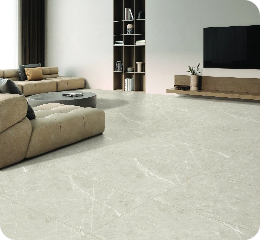
For example, you can use a floor tile visualizer to check whether a glossy floor tile suits your living room. You can use a bathroom tile visualizer to compare light, dark, matte, or patterned tiles for your bathroom. You can also use a wall tile visualiser to preview tiles for feature walls, elevation areas, kitchen walls, or bedroom walls.
Why Use the Kajaria Tile Visualizer?
The Kajaria tile visualizer helps reduce guesswork. When you are choosing tiles for your home or project, you are not only picking a design. You are choosing how the full space will feel after installation.
A small tile sample may not show the full pattern. A catalogue image may not match your room lighting. A showroom display may look different from your actual wall or floor. The visualizer helps bridge that gap.
With the Kajaria tile visualizer, you can:
- Upload a picture of your room
- Select a room for transformation
- Try Kajaria tile products in your space
- Use demo rooms when you do not have a photo
- Preview tiles for floors, walls, bathrooms, living rooms, kitchens, bedrooms, outdoor areas, and commercial spaces
- Compare tile options before final selection
This makes the process simpler, especially when several family members, clients, or project stakeholders are involved in the decision.
How to Use the Kajaria Tile Visualizer Online?
Using the Kajaria tile visualizer is simple. The process is designed for users who want a quick and clear preview before choosing tiles.
Step 1: Select a Room for Transformation
Start by choosing the type of room or surface you want to transform. This could be a living room, bathroom, kitchen, bedroom, outdoor area, elevation wall, or commercial space.
Selecting the right room type helps you focus on tiles that match the actual use of the space. For example, bathroom tiles need to handle moisture, while living room floor tiles need to balance style, comfort, and durability.
Step 2: Upload a Picture of Your Room
Next, upload a clear picture of your room. This is where the tile visualizer upload photo feature becomes useful. You can use your own room image instead of depending only on sample interiors.
A real room photo gives you a more personal preview. You can see how the tile works with your existing furniture, wall paint, lighting, doors, windows, and available space.
Step 3: Try Kajaria Tile Products in Your Room
After uploading the image, you can start trying tile products in the selected area. You can test different designs, finishes, shades, and patterns to see what looks better.
This is helpful when you are comparing two or more options. For example, you may like both marble-look tiles and stone-look tiles, but the visualizer can help you decide which one suits your room better.
Step 4: Use Demo Rooms If You Do Not Have a Photo
No room photo? You can still use demo rooms. The Kajaria tile visualizer gives you sample room settings where you can try different products.
Demo rooms are useful when your home is still under construction, the site is not ready, or you are exploring ideas before taking real photos.
Step 5: Scan the QR Code to Upload from Mobile
If your room photo is on your phone, you can scan the QR code and upload the picture directly. This makes the process easier because most people take room photos from their mobile camera.
Once uploaded, you can continue exploring tile options and previewing designs online.
Before You Upload: How to Take a Good Room Photo
A good photo gives a better tile preview. The visualizer works best when the room image clearly shows the full wall or floor surface.
What to Upload
Take the photo from around 5 to 6 feet away from the wall or floor. This helps capture the full area where you want to apply tiles.
Make sure the room is well lit. Natural light is helpful, but avoid harsh shadows or overly dark corners. A clear and bright image will make the preview easier to understand.
Remove unwanted objects from the surface area. Items like loose furniture, buckets, rugs, boxes, or clutter can block the wall or floor and affect the preview.
What to Avoid
Do not upload product pictures. The visualizer is made to preview tiles in a room, not to read tile sample images.
Do not upload floor plans or blueprints. A floor plan does not show real surfaces, lighting, wall height, or existing room conditions.
Avoid blurry, tilted, dark, or heavily edited photos. The cleaner the photo, the better the visual result.
Bathroom Tile Visualizer: Preview Before You Finalize
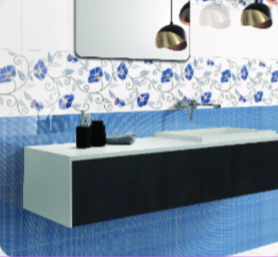
Bathrooms are one of the most important places to use a tile visualizer. A bathroom is usually smaller than other rooms, so tile colour, size, and pattern can change how open or compact the space feels.
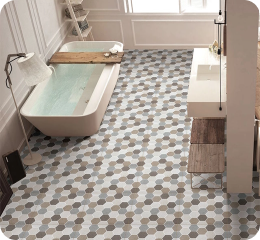
With a bathroom tile visualizer, you can check how different tiles may look on the floor and wall. You can test light shades for a clean look, darker tiles for contrast, or textured designs for a more premium feel.
It also helps you understand whether the wall and floor tiles work well together. For example, you may want a subtle floor tile with a statement wall tile, or you may want a uniform tile design throughout the bathroom.
Using the visualizer before buying helps you avoid choices that look too busy, too dull, or mismatched after installation.
Wall Tile Visualiser: Try Feature Walls, Kitchen Walls, and Elevation Designs
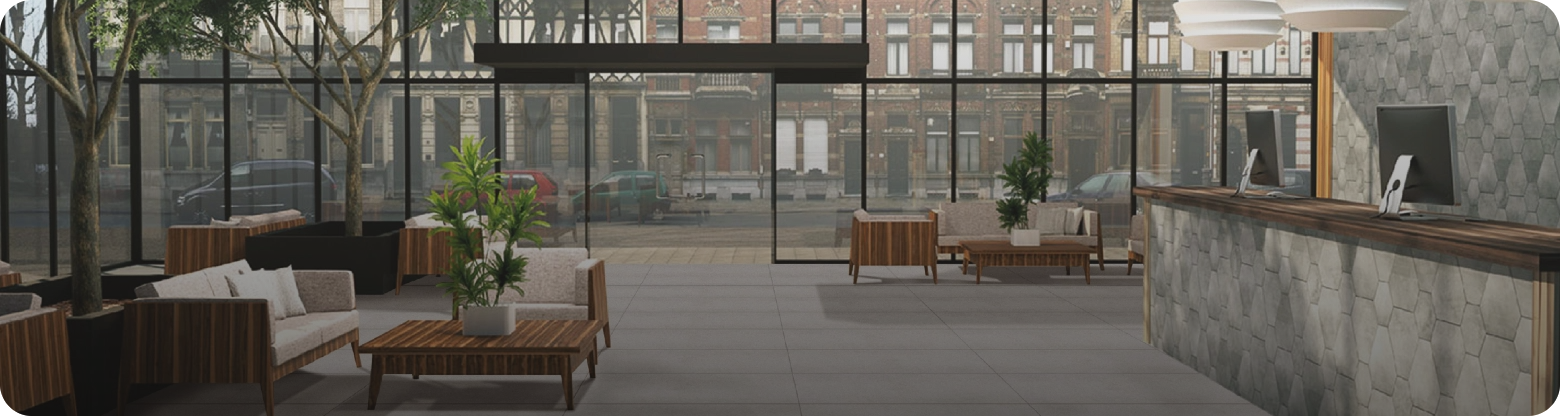
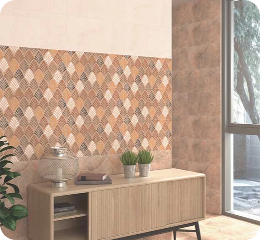
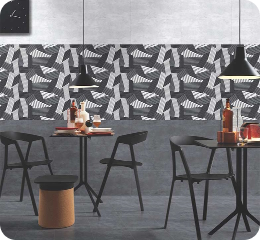
A wall tile visualiser is useful when you want to see how tiles will look on vertical surfaces. Wall tiles are often used to create design impact, especially in living rooms, bathrooms, kitchens, bedrooms, outdoor walls, and commercial interiors.
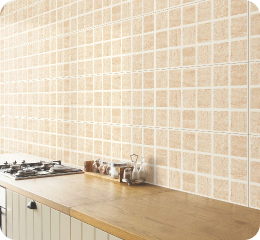
For a living room, you can preview tiles for a TV wall or feature wall. For a kitchen, you can check how wall tiles may look above the counter or cooking area. For outdoor spaces, you can test elevation-style tiles that add texture and depth.
Wall tiles affect the mood of a room quickly because they stay at eye level. That is why using a wall tile visualiser can help you choose a design that feels balanced, not overwhelming.
Floor Tile Visualizer: Check the Full Look of Your Space
A floor tile visualizer helps you preview tiles on the floor before installation. This is important because the floor covers a large area and strongly affects the overall look of the room.
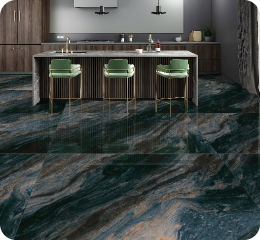
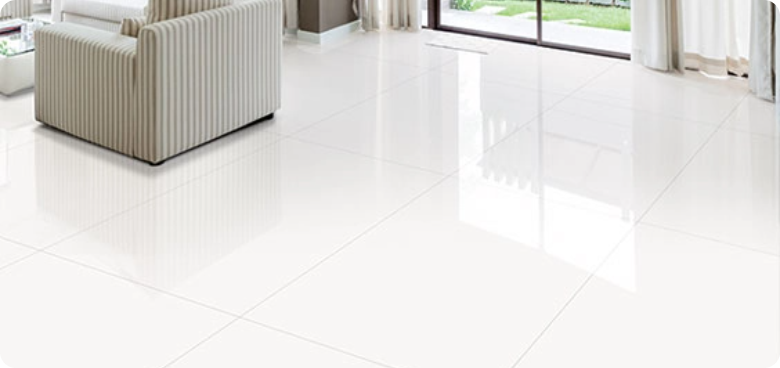
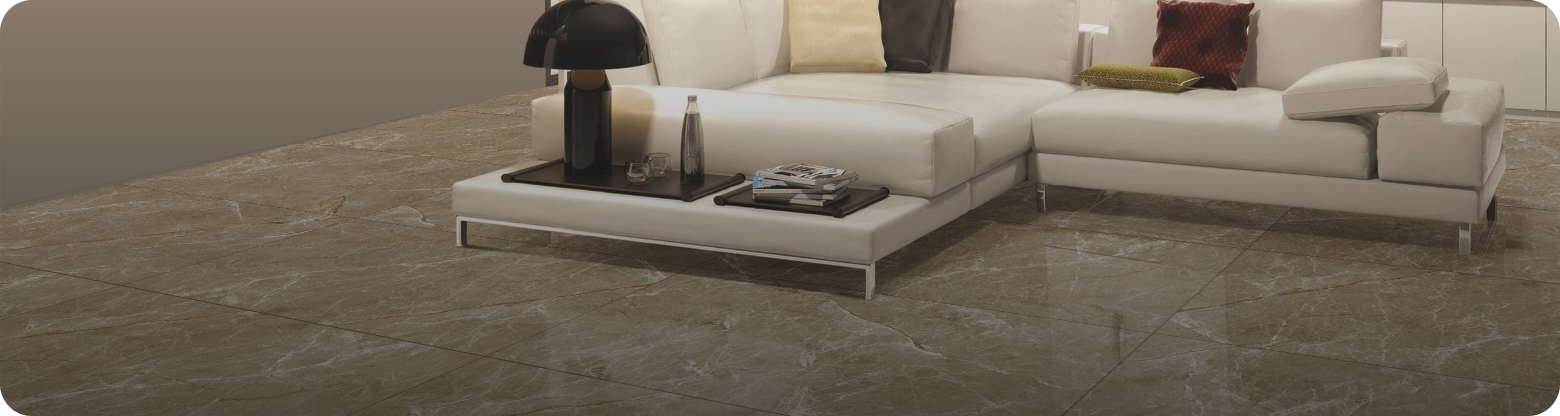
You can use it to compare polished, matte, glossy, stone-look, marble-look, wood-look, or neutral tile designs. You can also see whether a large-format tile makes the room feel more spacious or whether a patterned tile adds the right amount of character.
For living rooms, floor tiles should look elegant and be easy to maintain. For kitchens, they should be practical and durable. For bedrooms, they should feel comfortable and calm. For commercial spaces, they should support foot traffic while still looking professional.
The floor tile visualizer helps you see these differences more clearly before making a final decision.
Tile Visualizer Upload Photo: Why Your Own Room Image Matters
The tile visualizer upload photo option is one of the most useful parts of the tool. It allows you to move beyond sample rooms and see tile designs inside your own space.
Your room has its own lighting, wall colour, furniture placement, ceiling height, and layout. These details can change how a tile appears. A beige tile may look warm in one room and pale in another. A dark tile may look premium in a large room but heavy in a compact room.
When you upload your own room photo, you get a more realistic design reference. It helps you answer practical questions like:
- Does this tile match my furniture?
- Will this design make the room look bigger or smaller?
- Is the pattern too bold for the space?
- Does the wall tile match the floor tile?
- Will the tile suit my lighting?
This makes the selection process faster and more confident.
Kajaria Tile Visualizer vs Traditional Tile Selection
Traditional tile selection depends on showroom visits, catalogues, samples, and imagination. These are still useful, but they do not always show the full room effect.
The Kajaria tile visualizer adds one more layer to the process. It gives you a visual preview before you visit the showroom or finalize the product. You can shortlist designs online, compare looks, and then move ahead with more clarity.
This does not mean you should ignore physical tile samples. It simply helps you narrow down your options first. After using the visualizer, you can check the actual tile finish, texture, thickness, and feel in person.
Think of the tile visualizer as the planning step and the showroom visit as the confirmation step.
Where Can You Use the Kajaria Tile Visualizer?
The Kajaria tile visualizer can be useful for different room types and project needs.
Living Room
Use it to preview floor tiles, TV wall tiles, feature walls, and large-format designs. It helps you see whether the tile matches your furniture and lighting.
Bathroom
Use the bathroom tile visualizer to test floor and wall tile combinations. This helps you create a clean, balanced, and practical bathroom design.
Kitchen
Try wall tiles and floor tiles before finalizing the kitchen look. You can check whether the tile works with cabinets, counters, and appliances.
Bedroom
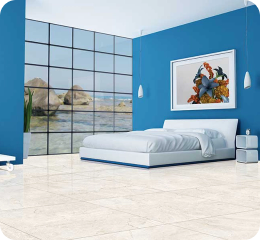
Use the visualizer to choose calm and comfortable floor or wall tile designs. Neutral, wooden, or soft textured tiles often work well in bedrooms.
Outdoor and Elevation Areas
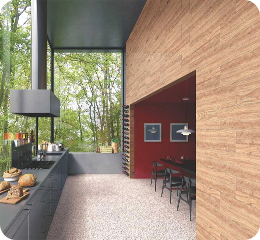
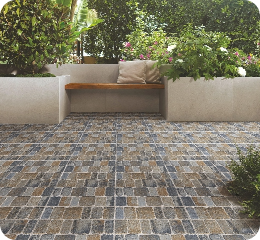
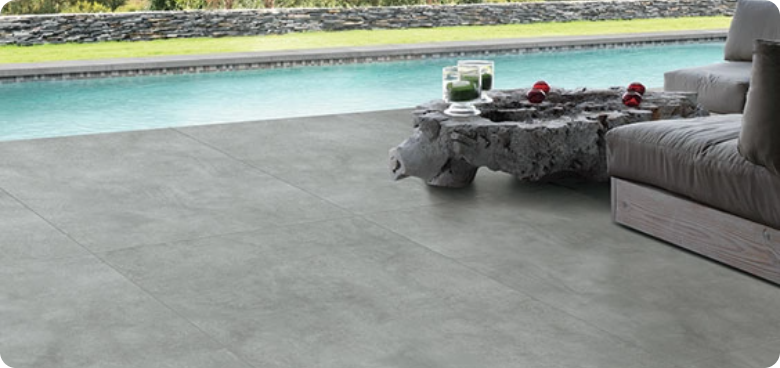
Preview tiles for outdoor walls, terraces, and elevation spaces. This helps you understand how the design may look on larger surfaces.
Commercial Spaces
For offices, retail stores, restaurants, and other commercial areas, the visualizer helps compare professional tile options before project execution.
Tips to Choose the Right Tile Using the Visualizer
Start with the room purpose. A bathroom, kitchen, living room, and commercial space all have different tile requirements.
Check the tile under your room lighting. If your space has less natural light, very dark tiles may make it feel smaller. If your room is large and bright, deeper tones may work well.
Compare wall and floor combinations together. A beautiful wall tile may not always match the floor tile. The visualizer helps you see the full combination.
Do not decide based on one design only. Try at least three to five options before shortlisting.
Keep maintenance in mind. Glossy tiles, matte tiles, textured tiles, and polished tiles all create different looks and may suit different areas.
Use demo rooms for inspiration, but upload your own room photo before final selection when possible.
Common Mistakes to Avoid While Using a Tile Visualizer
- Do not upload a close-up photo of only one corner. The tool needs a wider view to show the tile properly.
- Do not rely only on screen colour. Phone and laptop displays can show colours differently, so always check the actual tile before purchase.
- Do not choose only based on the trend. A tile should match your room size, lighting, furniture, and long-term use.
- Do not ignore grout lines and layout direction. The final installed look depends on tile size, pattern, spacing, and placement.
- Do not use the same tile everywhere without checking suitability. Wall tiles and floor tiles may have different functional requirements.
Why Choose Kajaria Ramesh Tile Visualizer for Online Tile Selection?
Kajaria Ramesh Tile Visualizer helps make tile selection easier by letting you preview wall and floor tiles in your own room before making a final decision. Instead of depending only on catalogues or showroom displays, you can upload your room photo, try different Kajaria tiles online, and see which design suits your space better.
For homeowners, architects, interior designers, and builders in Nepal, this tool saves time and reduces confusion. Whether you are planning bathroom tiles, living room floor tiles, kitchen wall tiles, bedroom tiles, or outdoor elevation tiles, the Kajaria tile visualizer gives you a clearer view of the final look before installation.
They also supports a smoother tile buying journey with its Tile Visualizer, Tile Finder, product catalogue, and where-to-buy options. This makes it easier to explore designs, shortlist products, and choose tiles with more confidence from one of Nepal’s trusted tile providers.
Conclusion
The Kajaria tile visualizer makes tile selection easier by helping you upload your room photo and try Kajaria tiles online. It gives you a clearer idea of how different wall and floor tiles may look in your actual space before you make a final choice.
Whether you are planning a bathroom, living room, kitchen, bedroom, outdoor wall, or commercial space, the visualizer helps you compare designs with more confidence. You can use your own room photo or start with demo rooms if your space is not ready yet.
For the best result, upload a clear and well-lit photo, try multiple tile options, and then visit a Kajaria Ramesh showroom, the best tile provider in Nepal, or use the Tile Finder to continue your selection. This way, you move from imagination to a more practical design decision.
FAQs
1. What is a tile visualizer?
A tile visualizer is an online tool that lets you preview tile designs on a wall or floor using your room photo or a demo room. It helps you see how tiles may look before installation.
2. How does the Kajaria tile visualizer work?
The Kajaria tile visualizer lets you select a room, upload a picture, and try Kajaria tile products in that space. You can also use demo rooms if you do not have a photo.
3. Can I upload my room photo in the tile visualizer?
Yes. The tile visualizer upload photo feature allows you to upload a clear image of your room and preview different tile designs on the visible wall or floor.
4. Can I use the Kajaria tile visualizer for bathrooms?
Yes. The bathroom tile visualizer is useful for checking floor and wall tile combinations before finalizing bathroom tiles.
5. What is a wall tile visualiser used for?
A wall tile visualiser helps you preview tiles on vertical surfaces such as bathroom walls, kitchen walls, living room feature walls, outdoor walls, and elevation areas.
6. Can I preview floor tiles online?
Yes. A floor tile visualizer helps you see how different floor tile designs may look in your living room, bedroom, kitchen, bathroom, or commercial space.
7. What kind of photo should I upload?
Upload a clear, well-lit room photo taken from around 5 to 6 feet away. Make sure the full wall or floor surface is visible and remove unwanted objects from the area.
8. What should I avoid uploading?
Avoid product pictures, floor plans, blueprints, blurry images, dark images, or photos where furniture and clutter block the surface.
9. Can I use demo rooms instead of my own room photo?
Yes. If you do not have a room photo, you can use demo rooms to try Kajaria tiles and explore design ideas.
10. Should I still visit a showroom after using the visualizer?
Yes. The visualizer helps you shortlist designs online, but checking the actual tile finish, texture, and colour in person is still recommended before final purchase.